Set up a client portal step by step
CloveDesk is simple to start and quick to learn. Here is the whole journey, from creating your account to sending a quote, getting it signed, and invoicing your client. Every step shows you exactly what you and your client will see.
No credit card required
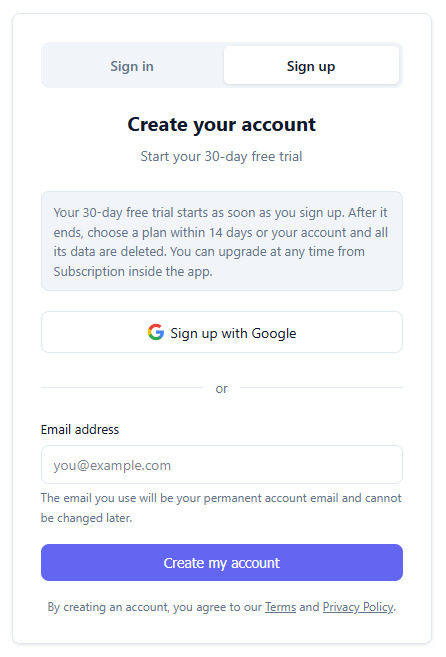
Quick signup, no forms, no password
Signing up is quick and there are no long forms. Enter your email address or continue with Google. If you use email, we send you a magic link. Open it and you are inside your client portal, ready to set up.
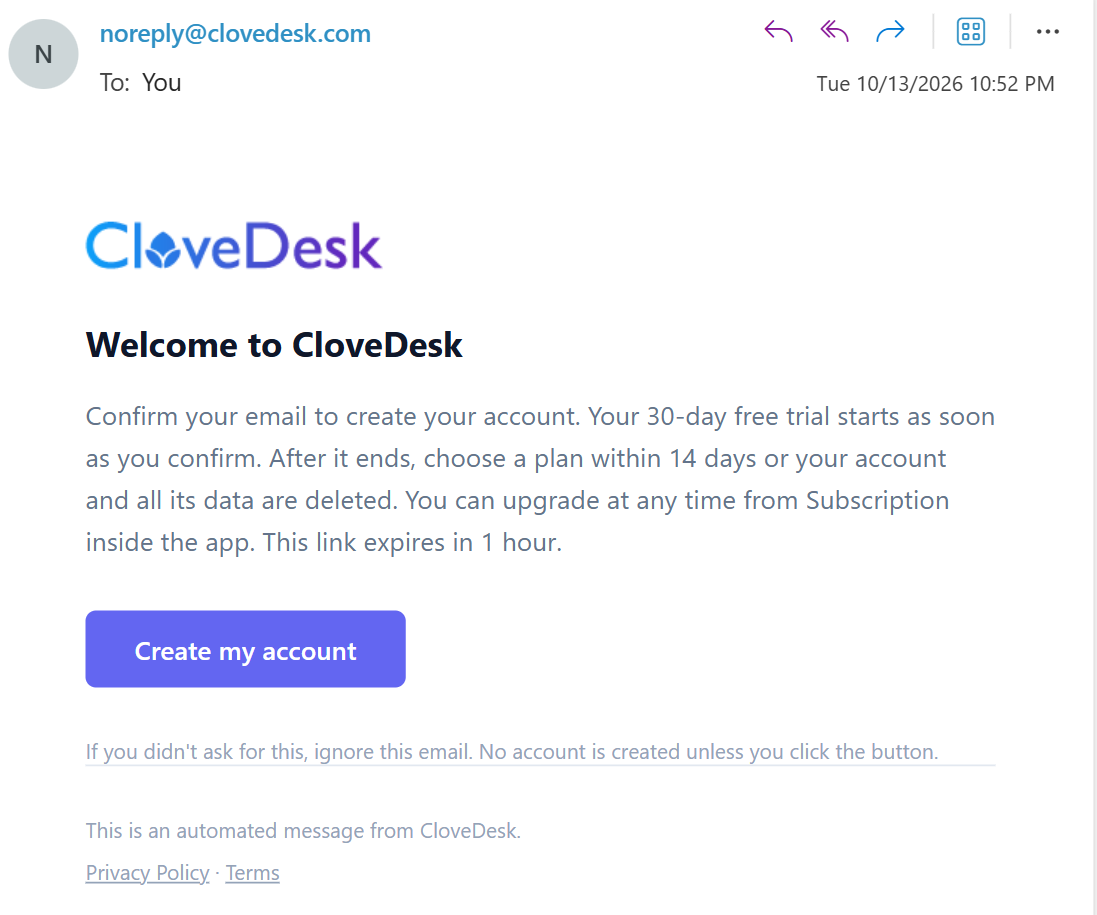
Set up your account with the built-in getting started guide
A simple checklist walks you through setup, so you are ready before you send anything to a client.
The first time you log in, you will see a Getting Started checklist. It guides you through setting up your account properly before you send your first quote, invoice or document for e-signature.
Every option on the list is also available in Settings in the main navigation, so you can change things any time.
Prefer to skip it? You can hide the checklist, and bring it back later from Settings.
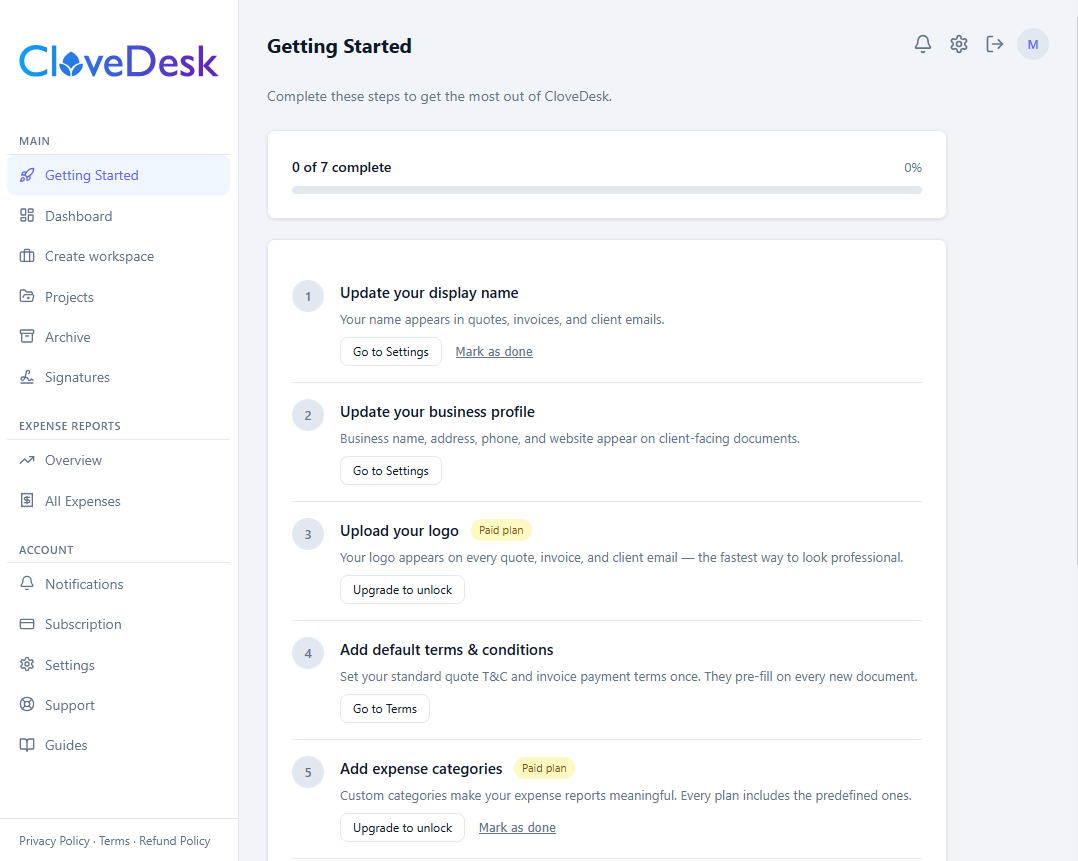
Set up your business profile, branding and reporting currency
Add your name, business details and currency once, and they appear on everything you send.
Start by adding your name and your business name, the way your clients know you. This is the one part you should always complete.
Business details
Business address, phone number and tax or VAT number are optional, but worth adding. They appear on your quotes and invoices and give them a professional look.
Branding
On a paid plan, this screen also lets you upload your logo and choose your brand colors. They show up inside the client portal and in the emails your clients receive.
Reporting currency
Choose your reporting currency carefully. It becomes your base currency, and the expense report converts everything into it. We recommend setting it once and keeping it fixed.
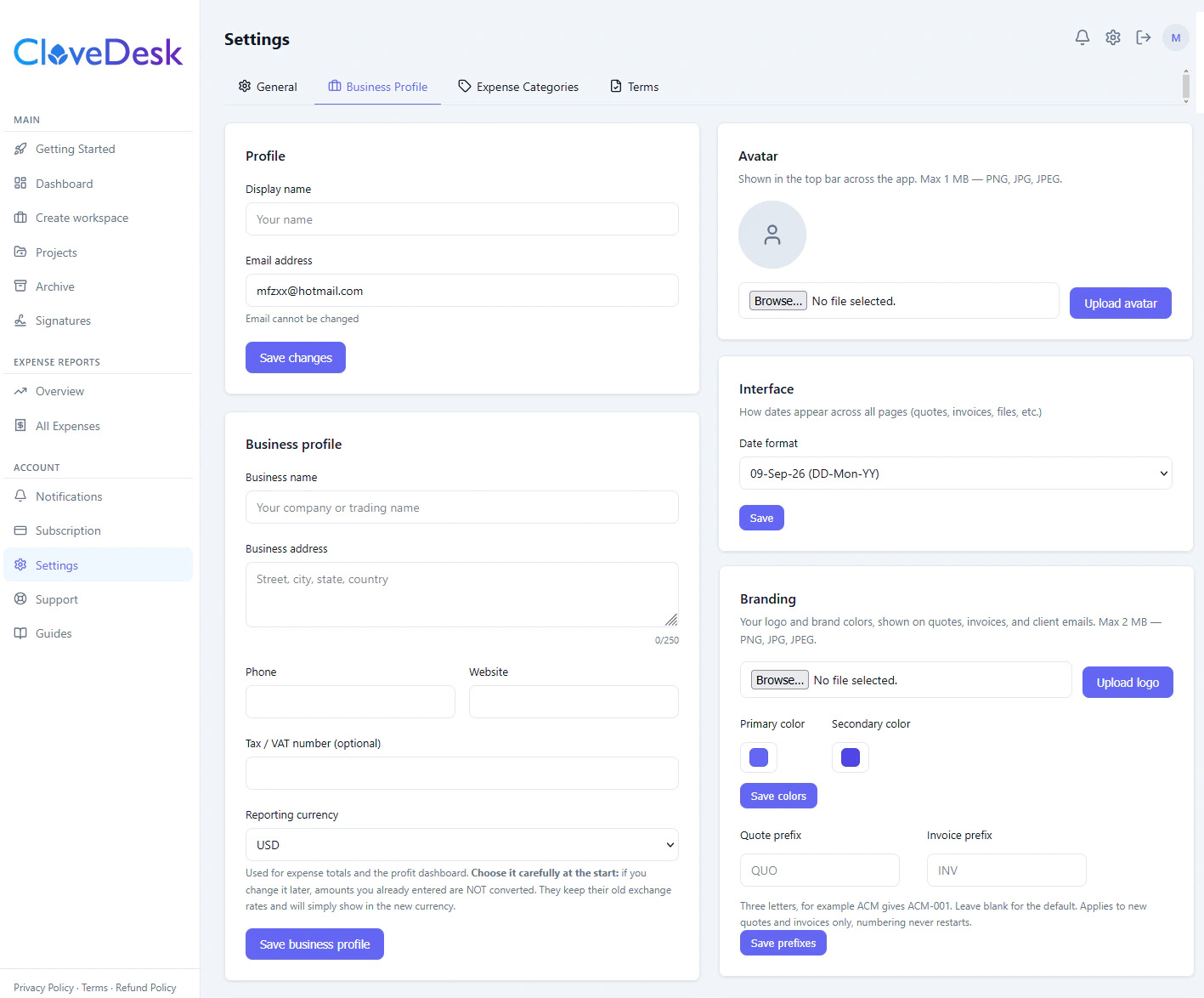
Create default terms and conditions for your quotes and invoices
Write your terms once and CloveDesk adds them to every quote and invoice automatically.
Already have terms and conditions? Paste them in. Starting from scratch? Click Load Sample to get a simple template you can edit to fit your business.
Your default terms load automatically into every new quote and invoice. You can still edit them on any individual quote or invoice, and the change only applies to that one. Your default terms stay the same.
Create a client workspace to keep everything for one client in one place
One workspace per client keeps their quotes, invoices, documents and files organized and separate from everyone else’s.
What is a workspace?
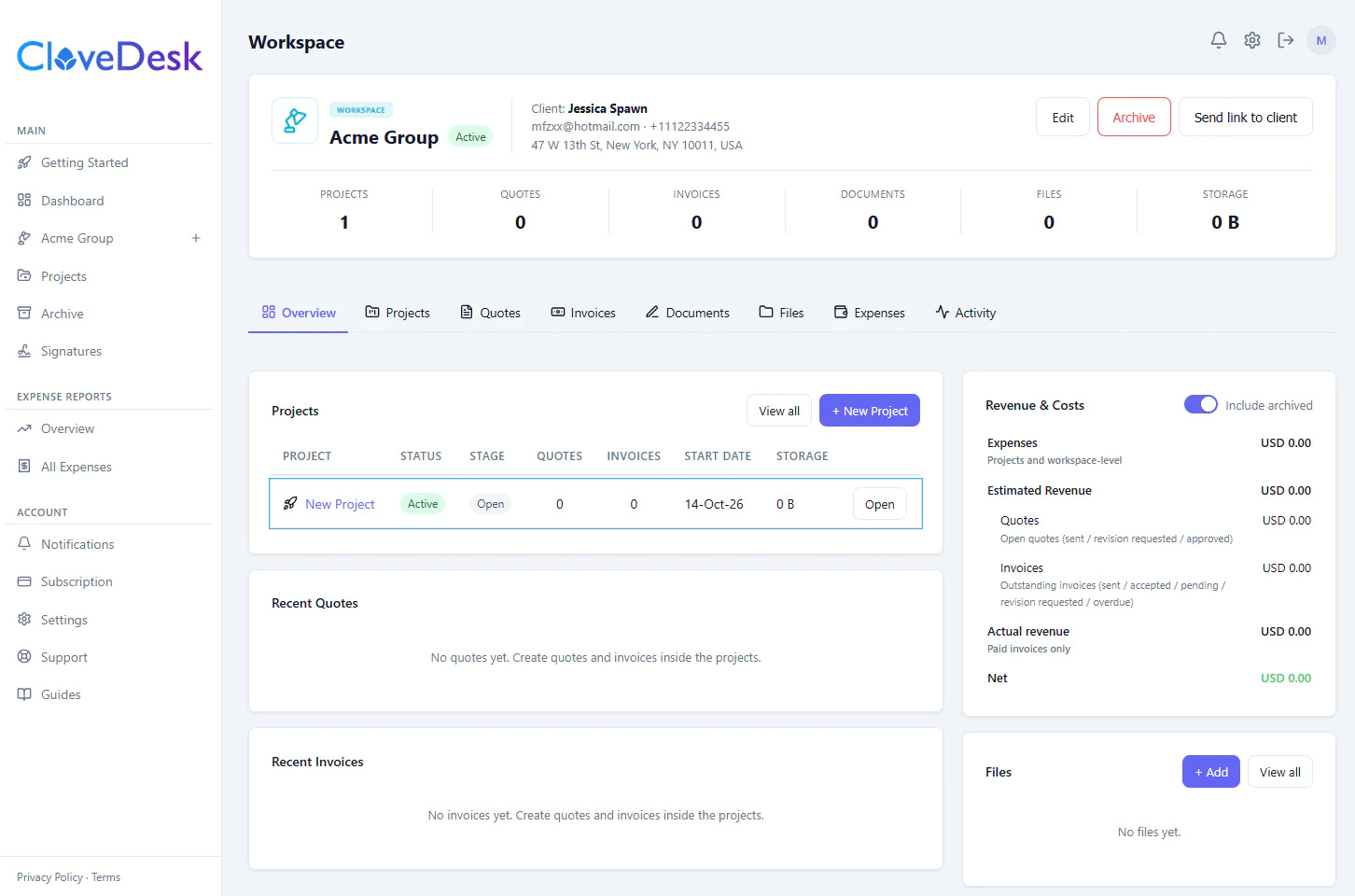
A workspace is a private space for one client. Everything related to that client lives inside it: projects, quotes, invoices, documents for e-signature, files and expenses. You never have to dig through emails to find something.
Pick a color for each workspace
Every workspace has a small colored banner at the top. Choose a different color for each client, and you can tell at a glance which workspace you are in. It is a simple way to avoid sending something to the wrong client when you manage several at once.
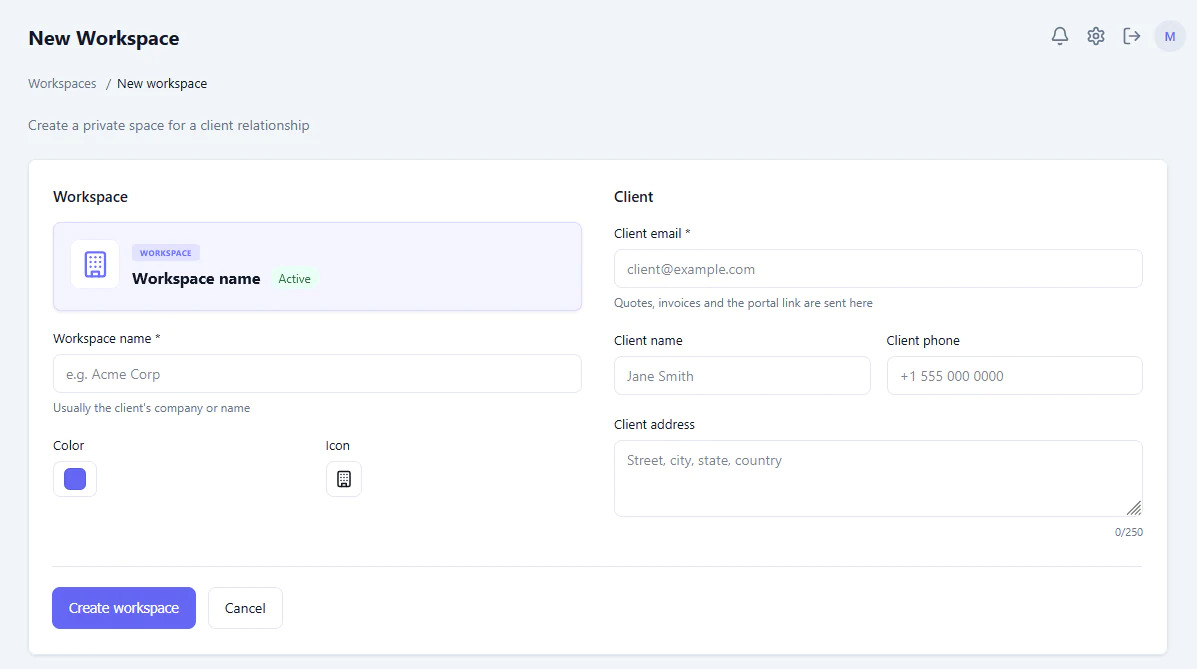
How you will use it
Create a workspace for each client, then add projects inside it. When you send a quote, invoice or document, it is saved in that client’s workspace. Your client opens it through a secure link, with no account or password.
Create a project and track its progress from one overview
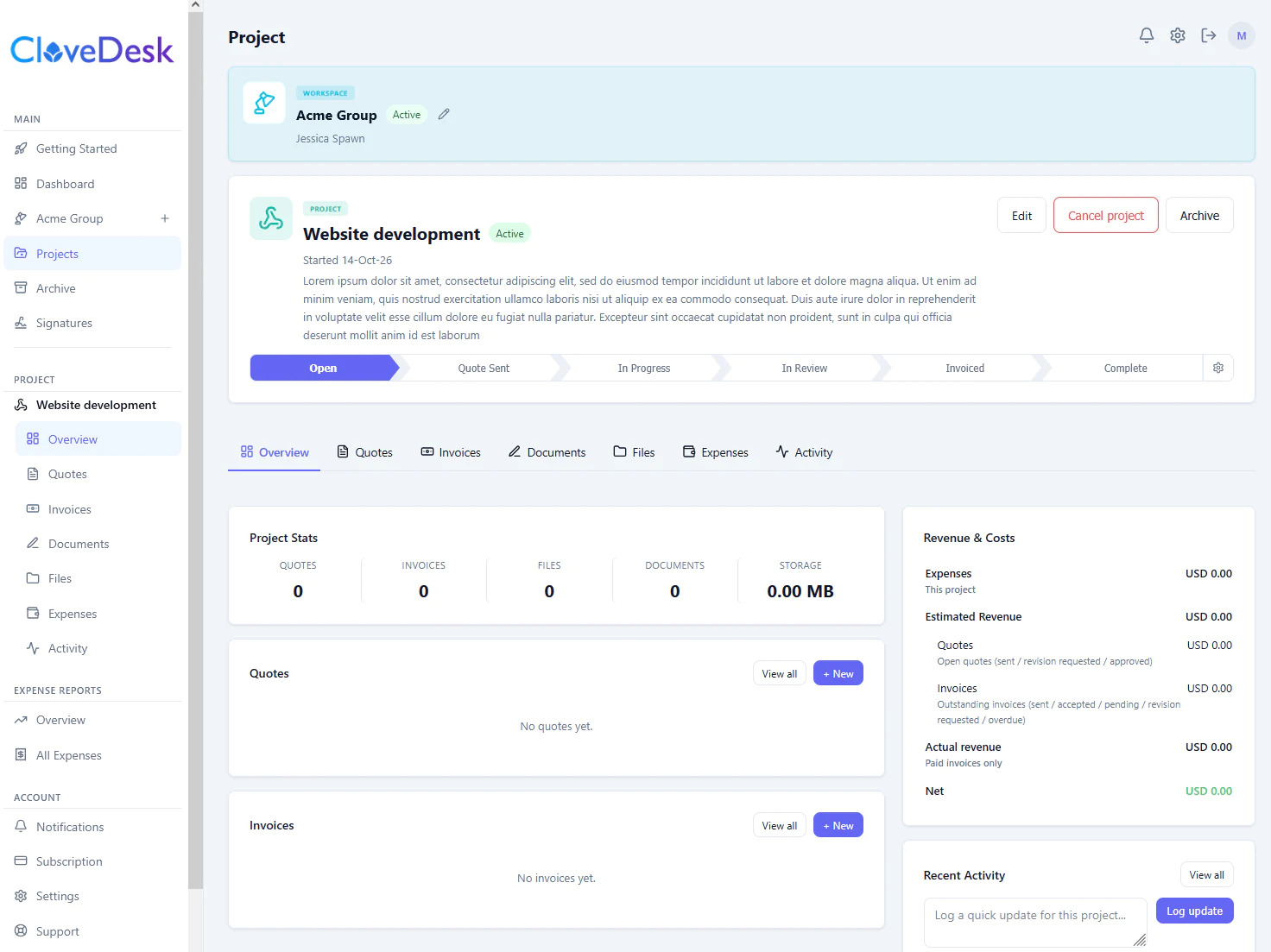
Projects keep each job organized inside the client’s workspace, with everything and its progress visible on one screen.
Inside a workspace, add a project with a name, start date, short description, and an icon and color to make it easy to spot. It takes a few seconds.
What you see on the project overview
The overview is your control center for that job. From here you can:
-
- See the project’s current stage and move it forward as work progresses
- Create quotes, invoices and documents for e-signature for this project
- View and share project files
- Track expenses linked to the project
- Follow what has happened so far
Everything you create here stays attached to the project, so your records are tidy and easy to find later.
Why use projects?
One client can have several jobs. Projects keep each one separate, so quotes, invoices and costs don’t get mixed together.
Create a quote online, or upload your own
Build a quote in minutes inside CloveDesk, or upload one you already made.
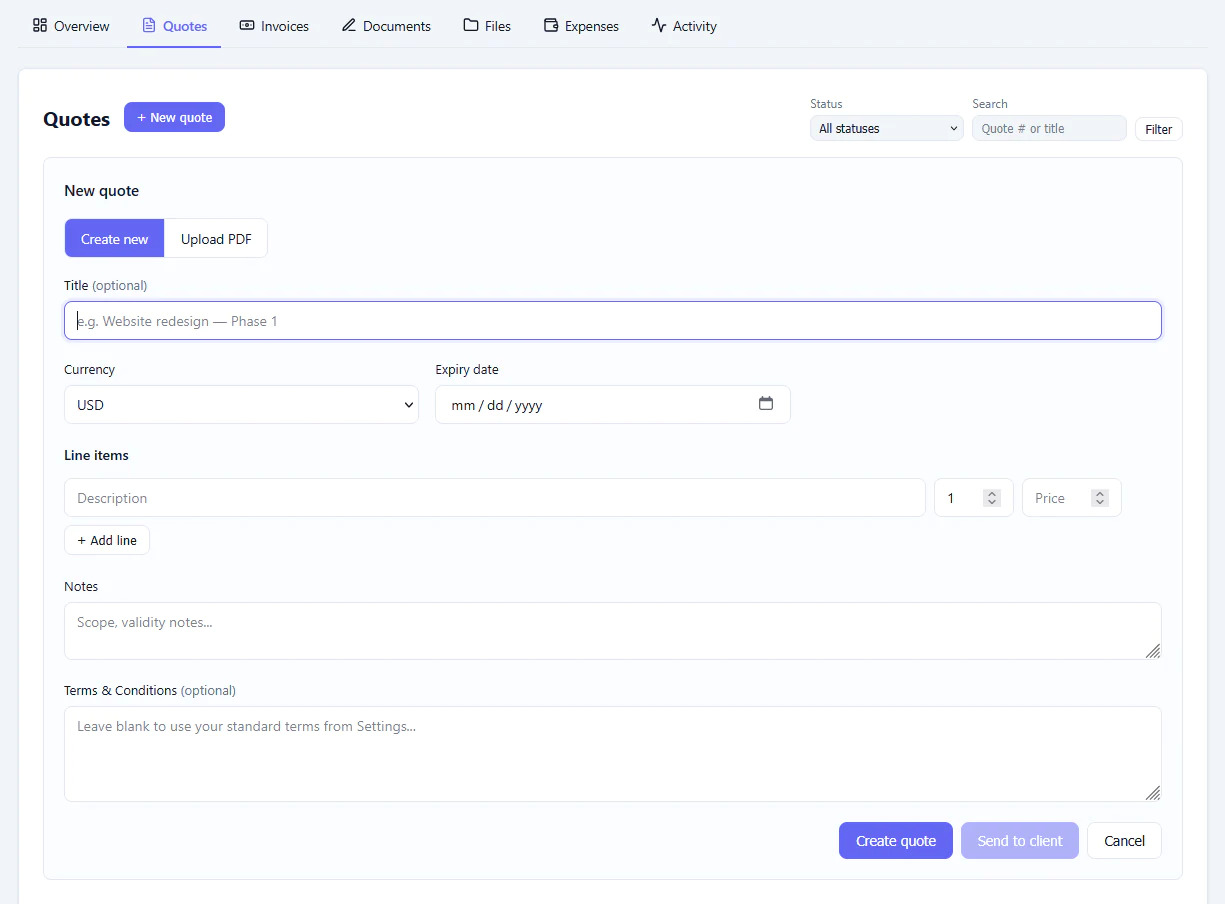
Create a quote
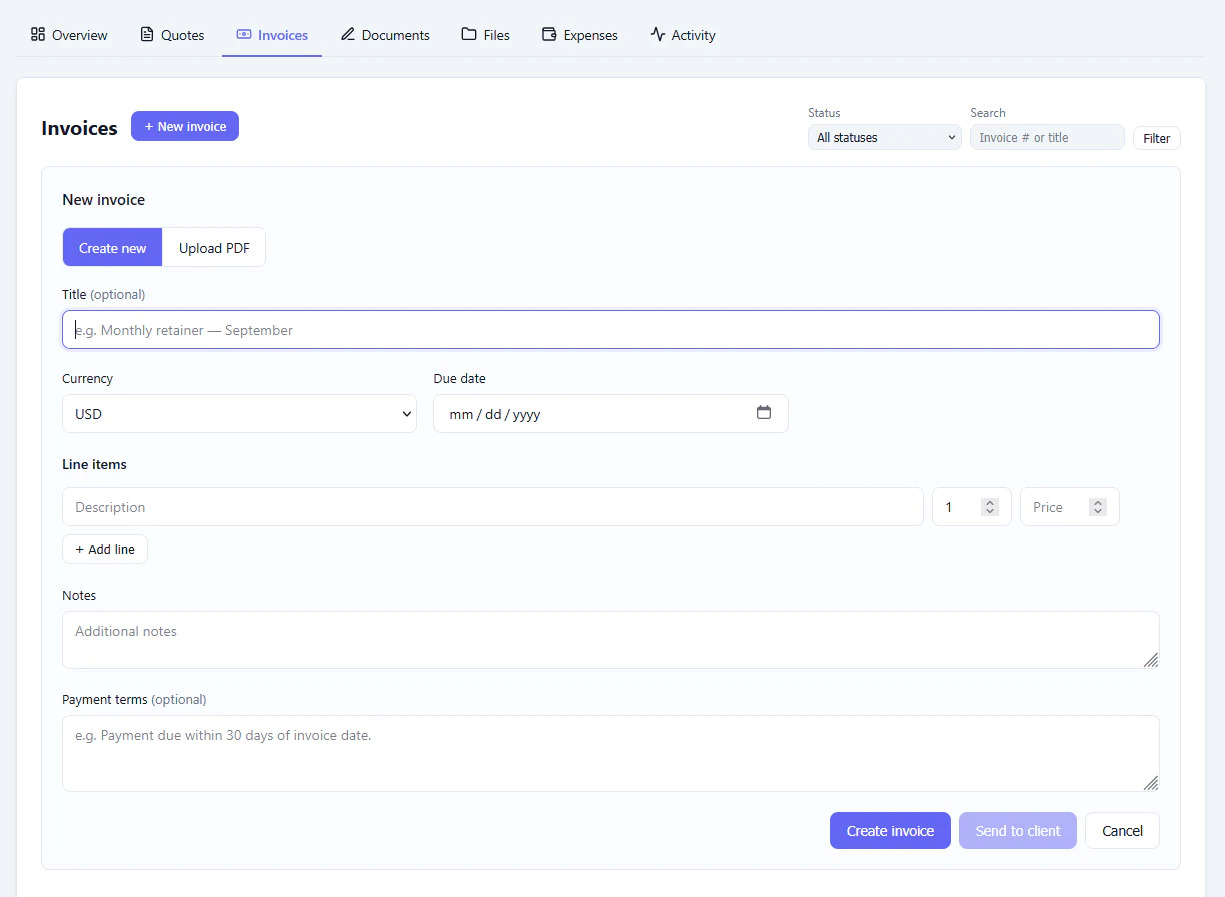
Fill in the quote form with your client and project details and the items or services you are offering. Your business details and default terms are added automatically, so every quote looks consistent and professional.
Or upload your own
Already have a quote prepared? Upload it instead and send it from the same place. This is handy if you use your own template or a quote made in another tool.
Review before you send
Check everything, edit the terms for this quote if needed, and send. Your client gets a secure link to view it and sign it online, with no account needed. The quote stays saved in the project, ready whenever you need it.
Turn an approved quote into an invoice, or create one from scratch
Convert an approved quote in seconds, or build an invoice from scratch. Either way it is ready to send for signature.
Convert an approved quote to an invoice
Once your client approves a quote, convert it into an invoice. All the details from the quote carry over automatically, so there is nothing to retype. You only need to add a due date and adjust the payment terms if needed. They load by default from your settings.
Then send it to your client for signature.
Create an invoice directly
No quote needed. You can create an invoice from scratch whenever you want, with your business details and default payment terms added for you.
Or upload your own
Just like quotes, you can upload an invoice you have already prepared and send it from the same place.
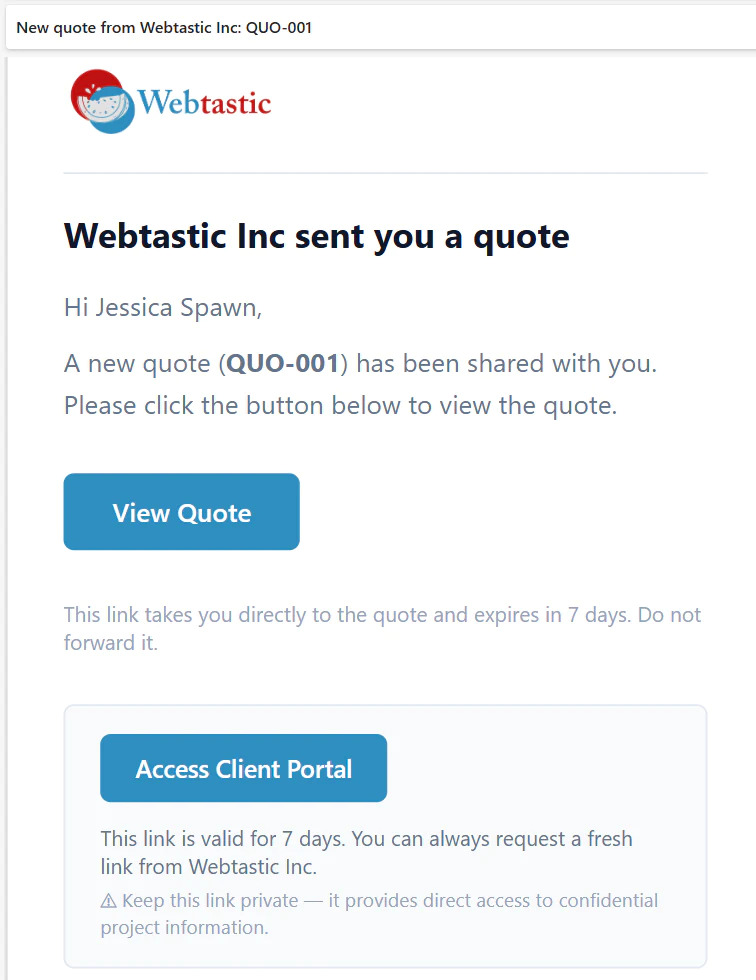
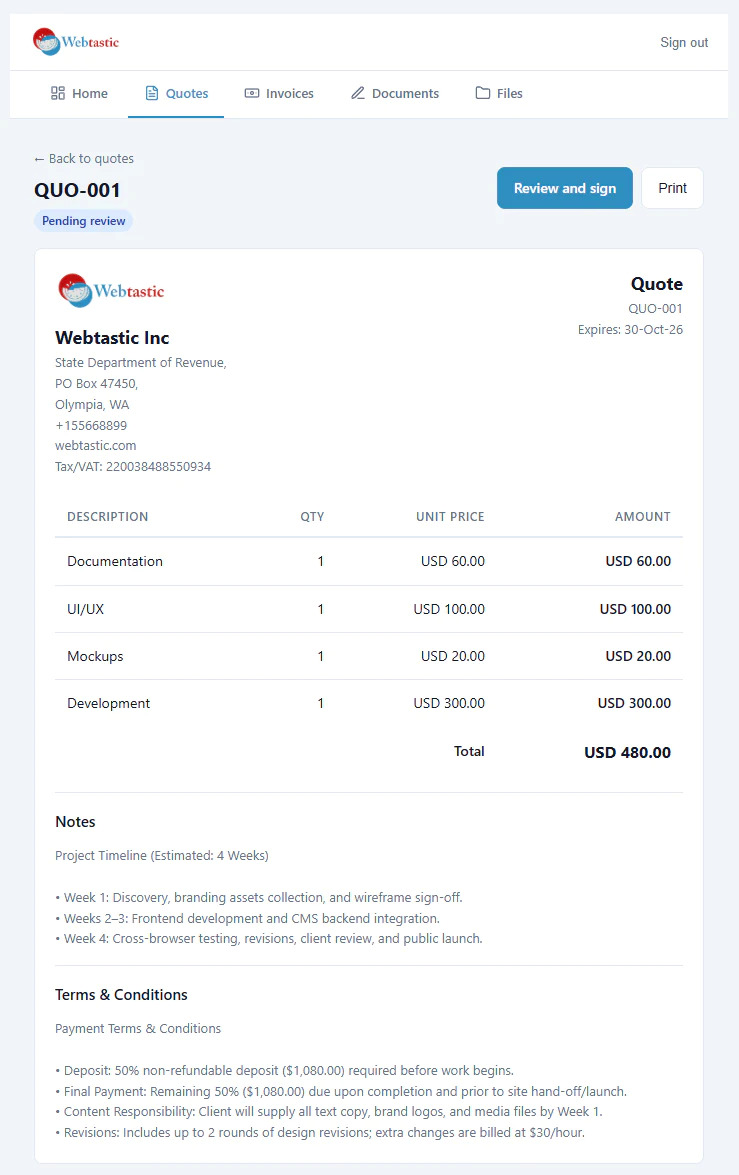
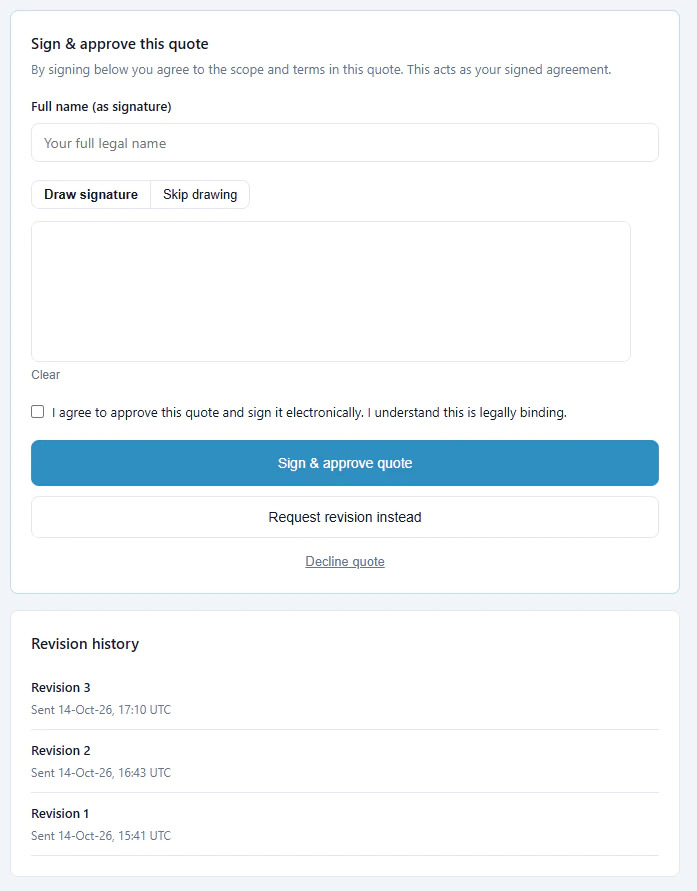
What your client sees: a branded email and an easy way to sign, request changes or decline
Your client gets a clean email and opens the quote from a secure link. No login, no app.
A branded email
Your client receives an email with your logo, colors and button style (when branding is set up on a paid plan). It looks like it came from your business, not from a generic tool.
The quote, clearly presented
One click opens the quote in the client view. They can read every detail on any device, without creating an account or remembering a password.
Sign, request a revision or decline
At the bottom of the quote, your client chooses what to do:
- Sign to approve the quote
- Request a revision if something needs to change
- Decline if it is not for them
You are notified of their decision, so you always know where the quote stands.
Get a signed copy, e-sign certificate and audit trail by email
When your client signs, you both receive the signed document and a full record of how it was signed.
A receipt in both inboxes
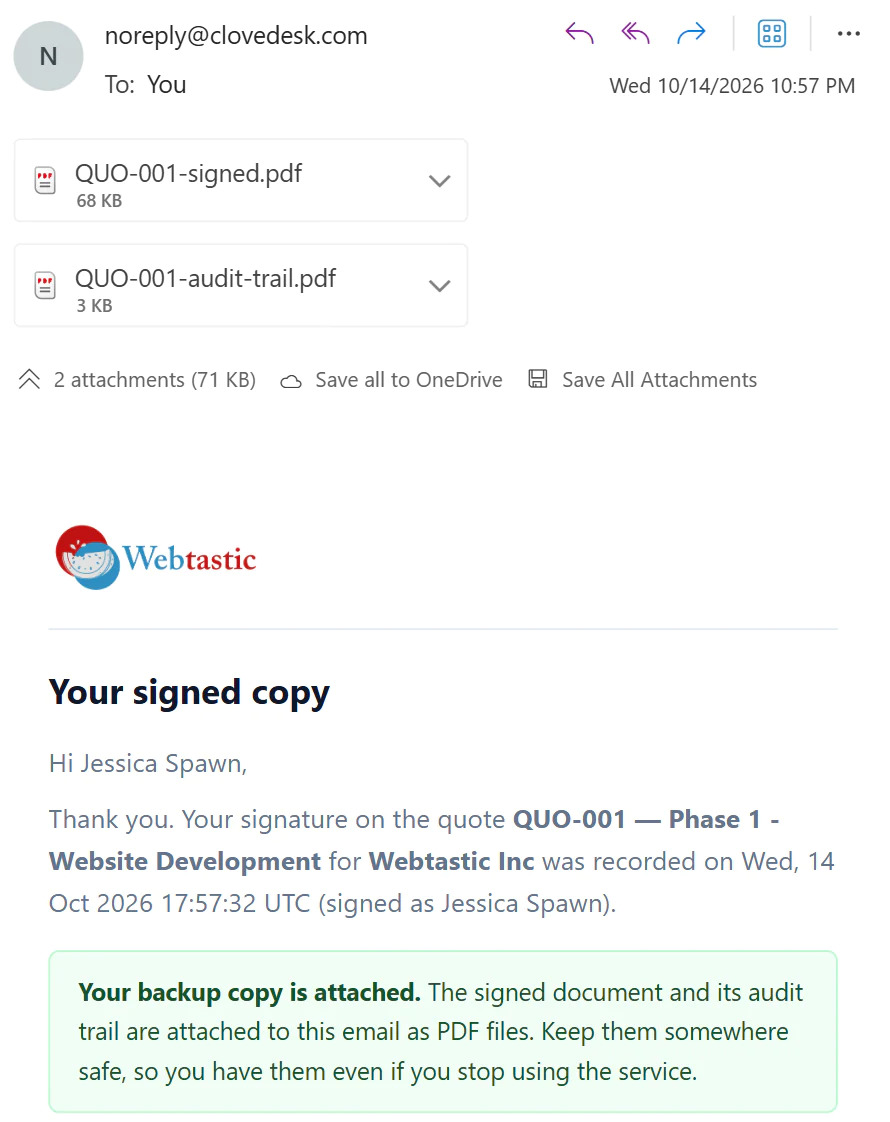
As soon as the document is signed, CloveDesk emails a receipt to you and your client. It includes the signed PDF and the audit trail PDF, so both sides keep their own copy.
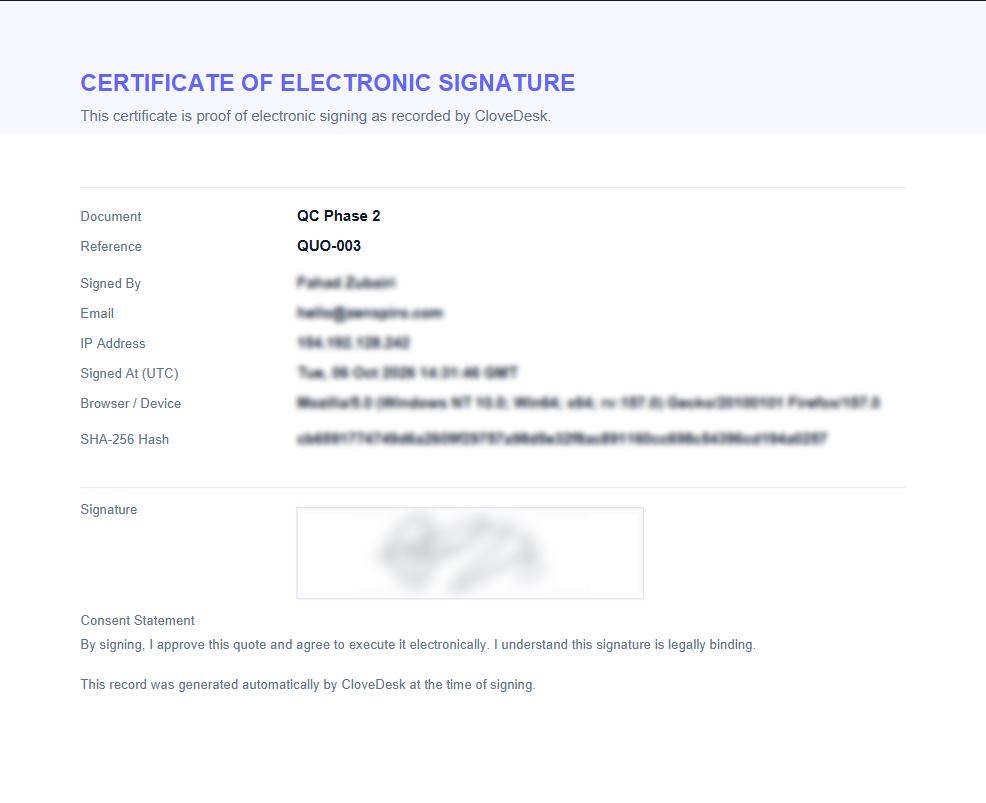
Electronic signature certificate
The certificate confirms the document was signed electronically. It records the details of the signing, and the document is sealed with a SHA-256 hash, so any later change to the file can be detected.
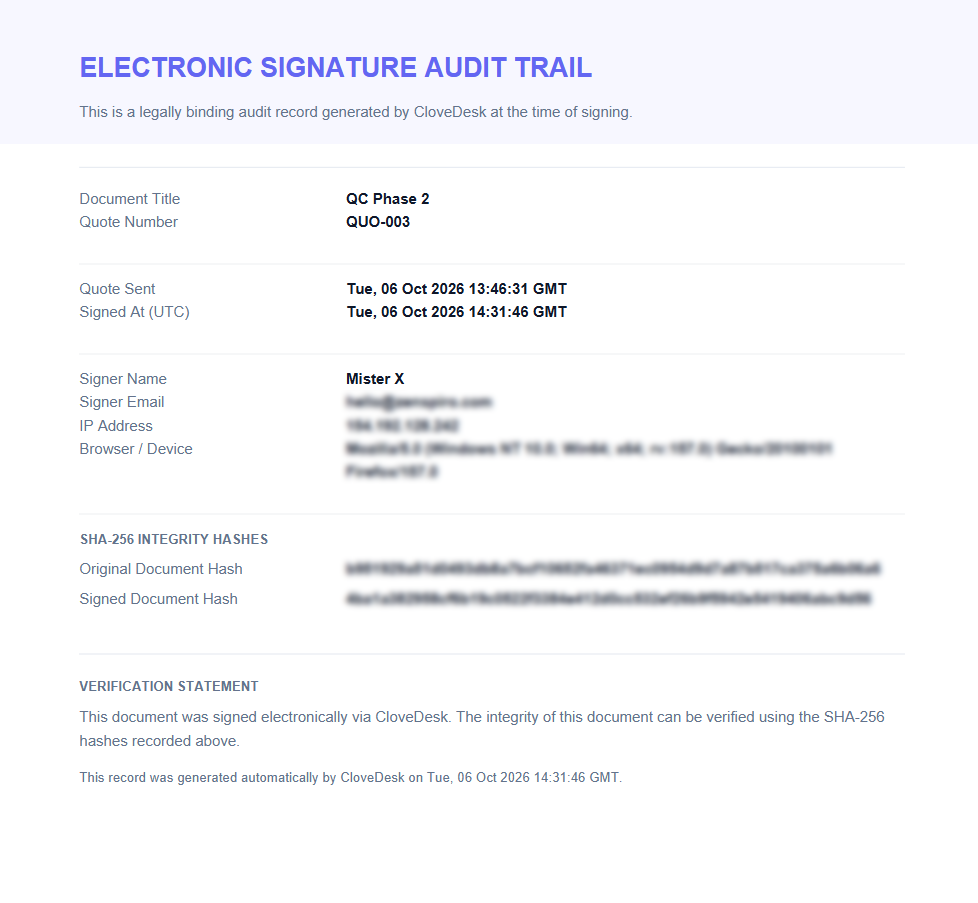
Audit trail
The audit trail is a step-by-step log of the document’s journey, such as when it was sent, opened and signed. It gives you a clear record if anyone asks “when was this signed?”
Always saved in the workspace
The signed copy is also stored in the client’s workspace, so you can find it again without searching your inbox.